Program Arcade GamesWith Python And Pygame
Lab 14: Sprite Moving
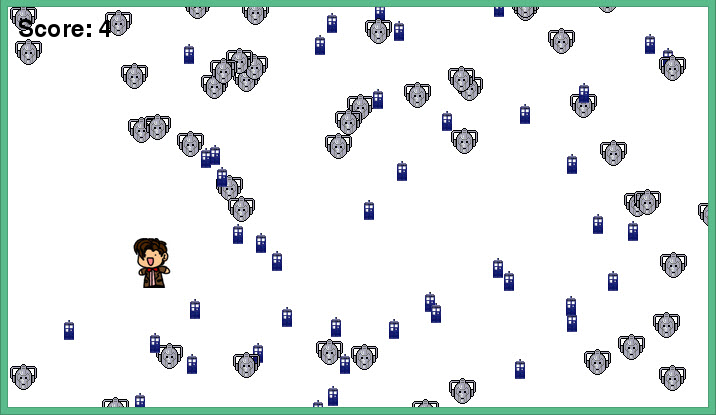
This lab practices uses Pygame sprites as described in Chapter 13, and separates the classes into different files as described in Chapter 14.
- Make sure this program is created in its own directory. If you are starting from the template I have at BitBucket, then make sure you start in the “Lab 14 - Sprite Moving” folder and put everything in there.
- Start with a copy of the program you wrote for Lab 13: Sprite Collecting. Copy those files into the directory for this lab.
- Move the Block class into a new file. Many people get confused between the name of the library file, the name of the class, and the variable that points to the instance of the object. Library files should be all lower case. I'd recommend calling your new file that you put the Block class into block_library.py.
- Make sure your program runs like before. Adjust import statements as needed. Remember that you prepend the library name to the class, not the variable that points to the instance of the class. For example: my_dog = dog_library.Dog() and NOT dog_library.my_dog = Dog() because Dog is what is in the library, not my_dog.
- Define a GoodBlock class in a new file, and inherit from your Block class. I'd recommend using the file name goodblock_library.py to keep with the pattern we set up before. Remember, define the class. Don't create an instance of it. Your for loop that creates the instances does not move.
- Add a new update method. (You probably don't need a new __init__ method.) Make the good block randomly move up, down, left or right each update. (Change self.rect.x and self.rect.y randomly each time the update function is called. Not to a completely new number, but add a random number from -3 to 3 or so. Remember that random.randrange(-3,3) does not generate a random number from -3 to 3.)
- Change your for loop so that it creates instances of the GoodBlock class and not your old regular Block class.
- Call update on the list of all the sprites you have. Do this in the main program loop so the blocks keep moving, not just once at the start of the program.
- Test and make sure it works.
- It is ok if the sprites move off the screen, but a common mistake results in the sprites all moving up and to the left off the screen. If that happens go back four steps and check your random range.
- Double check, make sure GoodBlock inherits from the Block class. If done correctly, GoodBlock won't need an __init__ method because it will get this method from Block.
- Create a BadBlock class in a new file and inherit from the Block class.
- Make an update function and have the bad block sprites move down the screen, similar to what was done in Chapter 13, section 2. Reset the block to the top when it falls off the screen. You may instead use a different type of movement. Take a look at the examples for some ideas.
- Test, make sure it works.
- Double check to make sure each class is in its own file.
- If you have extra time, you can look at the sprite examples section on the website and see how to get sprites to bounce or move in circles.
Copyright © 2017
English version by Paul Vincent Craven
Spanish version by Antonio Rodríguez Verdugo
Russian version by Vladimir Slav
Turkish version by Güray Yildirim
Portuguese version by Armando Marques Sobrinho and Tati Carvalho
Dutch version by Frank Waegeman
Hungarian version by Nagy Attila
Finnish version by Jouko Järvenpää
French version by Franco Rossi
Korean version by Kim Zeung-Il
Chinese version by Kai Lin
English version by Paul Vincent Craven
Spanish version by Antonio Rodríguez Verdugo
Russian version by Vladimir Slav
Turkish version by Güray Yildirim
Portuguese version by Armando Marques Sobrinho and Tati Carvalho
Dutch version by Frank Waegeman
Hungarian version by Nagy Attila
Finnish version by Jouko Järvenpää
French version by Franco Rossi
Korean version by Kim Zeung-Il
Chinese version by Kai Lin